

How to Find a YouTube Channel ID (Yours or Anyone's)
Find the UC channel ID of any YouTube channel from a handle, link or video, read your own in account settings, and see how IDs differ from handles.
Quick answer: A YouTube channel ID is a permanent 24-character code starting with UC, like UC8butISFwT-Wl7EV0hUK0BQ. For your own channel, open YouTube, go to Settings → Advanced settings, and the channel ID is shown there. For any channel, paste its @handle, its channel link or a link to any of its videos into the free YouTube Channel ID Finder. Modern channel URLs show a handle instead of the ID, which is why it is no longer visible in the address bar.
What a YouTube channel ID is
Every YouTube channel has a unique channel ID. YouTube assigns it when the channel is created and it never changes — not when the channel is renamed, not when the handle changes, not when a custom URL is set up.
That permanence is the whole point. A channel ID is what APIs, feed readers, analytics tools and embeds use to refer to a channel, because a name or handle can be changed by its owner at any time.
The format is consistent: UC followed by 22 more characters, 24 in total. If something you were given does not start with UC and is not 24 characters long, it is not a channel ID — it is probably a handle, a video ID or a playlist ID.
The identifiers a channel can have
Four different things get called "the channel's name", and tools are rarely clear about which one they want.
| Identifier | Example | Changes? |
|---|---|---|
| Channel ID | UC8butISFwT-Wl7EV0hUK0BQ | Never |
| Handle | @handle, shown as youtube.com/@handle | The owner can change it |
| Legacy custom URL | youtube.com/c/name | Cannot be created or changed any more, but existing ones still work |
| Legacy username | youtube.com/user/name | From YouTube's early years |
YouTube creates a handle URL automatically whenever a channel owner chooses or changes their handle. Older custom URLs now redirect to the handle-based URL, and YouTube no longer lets anyone set up a new custom URL or change an existing one.
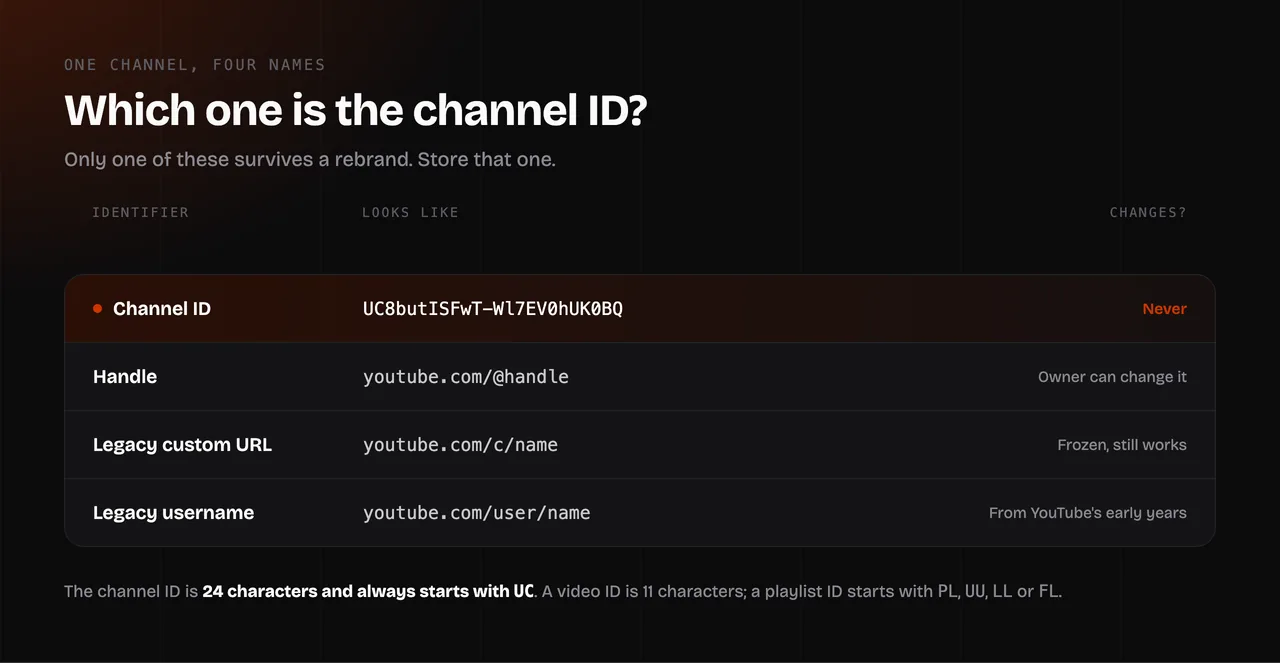
Practical consequence: store the channel ID, not the handle. If you track creators in a spreadsheet or a CRM by their @handle, your records break silently the day they rebrand. The ID never moves.
Find your own channel ID
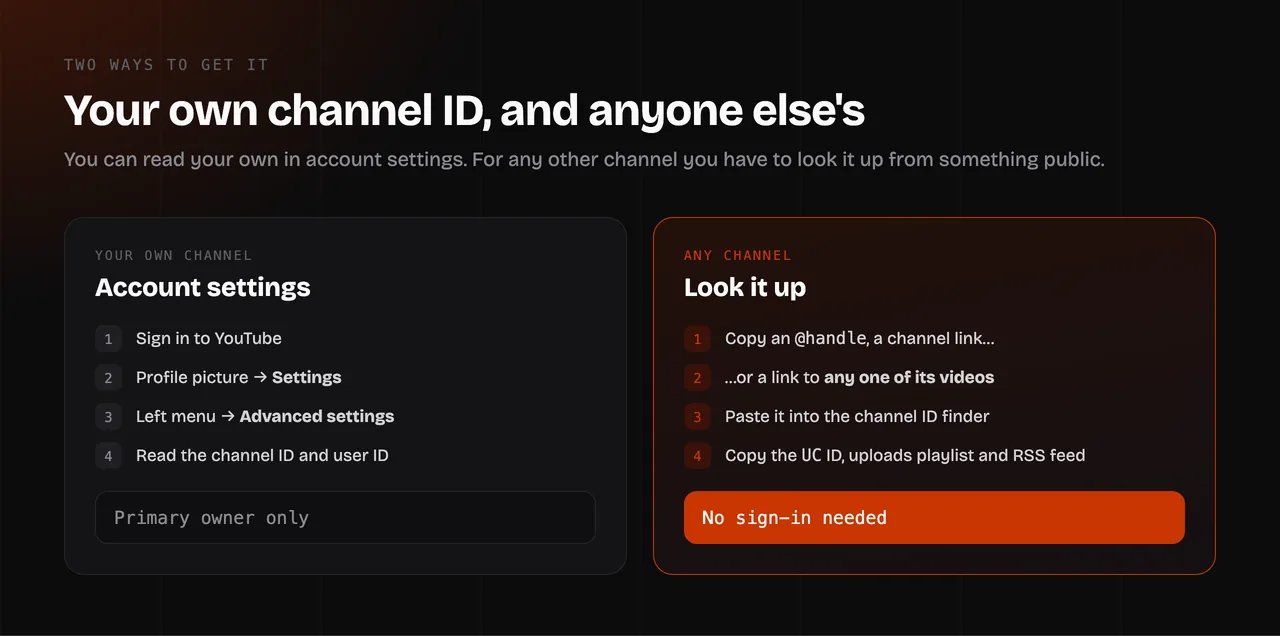
You need to be signed in as the channel's primary owner.
- Sign in to YouTube.
- Select your profile picture in the top right, then Settings.
- In the left menu, select Advanced settings.
- Your channel ID and user ID are both shown there.
This works on a computer or in a mobile browser. The page shows two values — the channel ID is the one starting with UC; the user ID is a legacy identifier that most modern tools do not ask for.
If you are signed in to several accounts, check which channel you are viewing before you copy anything. Brand accounts you manage each have their own ID.
Find anyone's channel ID
You cannot read someone else's account settings, so you have to look the ID up from something public. The quickest route is the YouTube Channel ID Finder, which accepts any of these:
- an
@handle, with or without theyoutube.com/part - a channel link in any format —
/channel/,/@handle,/c/or/user/ - a link to any video or Short from that channel, which resolves to the uploader
Paste it, press Find channel ID, and copy the UC ID in one click. The result also includes the channel's subscriber, video and view counts, the country it is set to, its creation date, its uploads playlist ID and its RSS feed URL. Nothing to install and no sign-in.
The video-link route is the one worth remembering. When a creator's channel page is hard to reach — an embedded video, a Short in a feed, a link someone sent you — any single video of theirs is enough to identify the channel.
Reading it manually from the page source
If you would rather not use a tool, the ID is in the HTML of the channel page. Open the channel, view the page source, and search for channelId or for externalId. The value next to it is the UC ID.
This is fragile — YouTube changes its page markup regularly, and the search may return several matches on a page that embeds other channels. It is a fallback, not a method.
What a channel ID is actually for
The YouTube Data API. API requests identify channels by UC ID. Handles are supported in some places and not others, so code that stores handles tends to break.
RSS, without an account. Every channel publishes a feed of its recent uploads at https://www.youtube.com/feeds/videos.xml?channel_id=UC…. Drop that into any feed reader and you get new videos without subscribing, without recommendations and without the app. The channel ID finder outputs the complete URL ready to paste.
The uploads playlist. Every channel has a playlist containing all of its public uploads. Its ID is the channel ID with UC swapped for UU — so UC8butISFwT-Wl7EV0hUK0BQ becomes UU8butISFwT-Wl7EV0hUK0BQ. That gives you a playlist you can open, play from the beginning or export, which the channel page itself does not offer in that form. To watch a channel from its very first video, pass the channel to YouTube Play All.
Third-party tools. Subscriber counters, analytics dashboards, embed widgets and automation platforms almost all ask for a channel ID rather than a handle, for the same reason the API does.
Channel ID, video ID, playlist ID
While you are matching IDs to the right field, these are the three you will meet most often:
| ID type | Starts with | Length | Where you see it |
|---|---|---|---|
| Channel ID | UC | 24 | youtube.com/channel/UC… |
| Video ID | no fixed prefix | 11 | youtube.com/watch?v=…, youtu.be/… |
| Playlist ID | PL, UU, LL, FL | varies | youtube.com/playlist?list=… |
A video ID is 11 characters and can contain letters, digits, hyphens and underscores. If a tool rejects your input, the length is usually the giveaway: 11 means you pasted a video, 24 beginning with UC means a channel.
To check which video an ID belongs to, along with its publish time, duration, category and tags, paste the link into the YouTube Metadata Viewer.
Common problems
The channel URL shows @handle and no ID.
That is now the default. The ID still exists; it just is not in the URL. Resolve the handle with the YouTube Channel ID Finder.
A tool rejects my handle.
Many tools only accept UC IDs. Convert the handle to an ID first and paste that instead.
An old /c/ or /user/ link still works, but I need the ID.
Both formats redirect to the handle URL now. Paste the old link into the finder — it handles both.
I only have a channel name, not a link. A display name is not unique; several channels can share one. Search for the channel on YouTube, open a video from it, and use that video link. Working from a name alone risks identifying the wrong channel.
The ID I was given does not work.
Check the prefix and length. A 24-character string starting with UC is a channel; UU is the uploads playlist, which some tools accept and others reject; 11 characters is a video.
I need the channel's description text, not its ID. Paste the channel link or handle into the YouTube Description Extractor to get the channel description, with its links and character count.
FAQ
What is a YouTube channel ID?
A permanent 24-character identifier that starts with UC. YouTube assigns it at creation, and it never changes even if the channel's name, handle or custom URL does.
How do I find my YouTube channel ID? Sign in to YouTube, open Settings, then Advanced settings. Your channel ID and user ID are both shown there. You must be the channel's primary owner.
How do I find someone else's channel ID?
Paste their @handle, channel link or any of their video links into the YouTube Channel ID Finder.
What is the difference between a channel ID and a handle?
The handle is the @name viewers see, and the owner can change it. The channel ID is a fixed code YouTube assigns, and it never changes. Store the ID when you need a stable reference.
Does a YouTube channel ID ever change? No. A channel keeps the same ID for its whole life. Only the ID gives you a reference that survives a rebrand.
Can I get a channel ID from a video link? Yes. Any video or Shorts link identifies the channel that uploaded it, which is often the fastest route when the channel page is awkward to reach.
What is the uploads playlist ID?
A playlist containing every public upload from a channel. Its ID is the channel ID with UC replaced by UU, and you can open, play or export it like any other playlist.
How do I get a channel's RSS feed?
Use https://www.youtube.com/feeds/videos.xml?channel_id= followed by the channel ID. The channel ID finder shows the finished URL under its other IDs and links.
Is a channel ID the same as a user ID?
No. Advanced settings shows both, but the user ID is a legacy identifier from YouTube's early username system. Modern APIs and tools want the UC channel ID.