

How to Download YouTube Playlist Transcripts as One File
Export existing captions from a YouTube playlist, channel or multiple links as one text file for ChatGPT or NotebookLM, or a ZIP with a file per video.
Quick answer: Paste a playlist or channel link into TubeKit's Bulk YouTube Playlist Transcript Downloader, select the videos and press Get transcripts. Choose One file and download TXT or Markdown to prepare one document for ChatGPT, Claude or NotebookLM. Try 3 videos a day free without an account; additional videos use credits. Only existing YouTube captions can be exported.
Choose between video links and transcript text
These two jobs produce different results:
| Your goal | Tool | Result |
|---|---|---|
| Collect video URLs to add separately to NotebookLM | YouTube to NotebookLM | Video links and an outline, without downloading captions |
| Read or upload the actual words from many videos | Playlist Transcript Downloader | Existing captions as one document or separate files |
| Save playlist titles, URLs and metadata | Playlist Exporter | A list of videos, without their spoken content |
Exporting a transcript document does not import the videos themselves into another app. It also does not preserve them as separate sources inside that app: one merged document is one uploaded document.
Export a playlist's transcripts step by step
- Copy the playlist link. If you cannot find it, use the playlist link guide.
- Open the bulk transcript tool, paste the link into Playlist or channel and press List videos.
- Review the titles and lengths, then untick videos you do not need. You can use the Hide Shorts filter to reduce short clips in the list.
- Press Get transcripts. Each video has its own progress and result. Failed requests can be retried; videos without captions are marked separately.
- Choose One file and TXT or Markdown, then download the available transcripts.
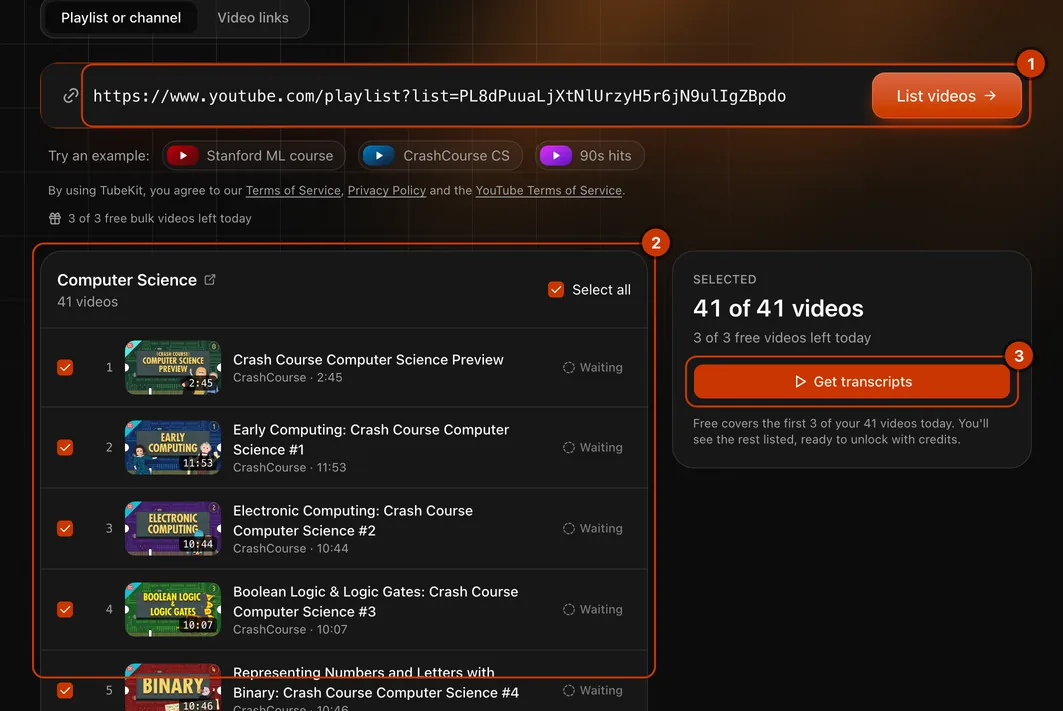
The export keeps each video's title, source URL and position in the playlist. That makes a course easier to read in lesson order and gives you links to check the original videos.
One merged file or a ZIP?
| Format | Best use | What to expect |
|---|---|---|
| One TXT file | Reading or uploading transcript text | Sections for individual videos, with titles and source links |
| One Markdown file | Notes and structured documents | Video headings and source links; optional clickable timestamps |
| ZIP with TXT or Markdown files | A searchable folder or archive | One numbered file per video |
| ZIP with SRT files | Subtitle editing | One subtitle file per video, retaining that video's own timings |
| CSV | Spreadsheet analysis | One row per video, including its transcript |
| JSON | Programmatic processing | Video metadata and caption segments with timings |
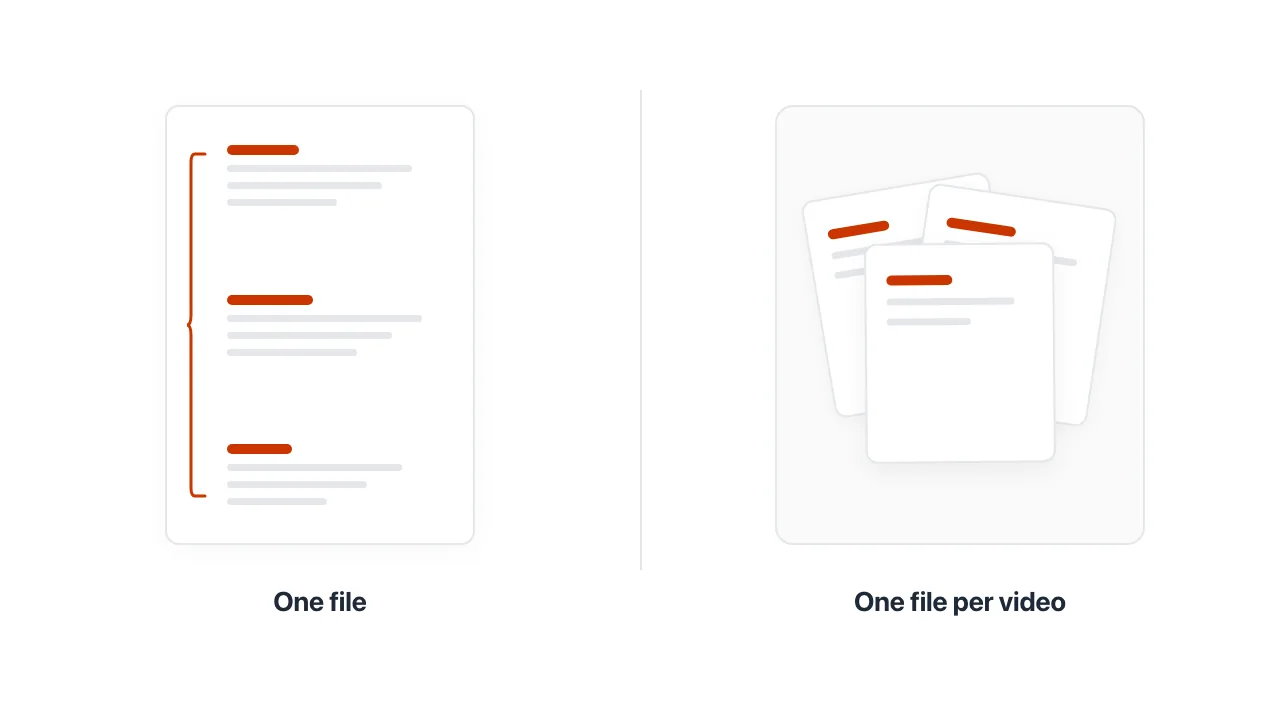
SRT is always exported as a ZIP, because each video's subtitles start on its own timeline. Concatenating those subtitle files would not produce a valid timeline for the entire playlist.
Very long merged exports are split into parts and downloaded together in a ZIP. This reduces the size of each document, but the receiving app still applies its own current file and account limits.
Use the file with ChatGPT or Claude
If file uploads are available in your account, attach the TXT or Markdown export. For a small selection, Copy all transcripts also prepares text to paste into a chat. TubeKit does not upload the file or submit a prompt to another service for you.
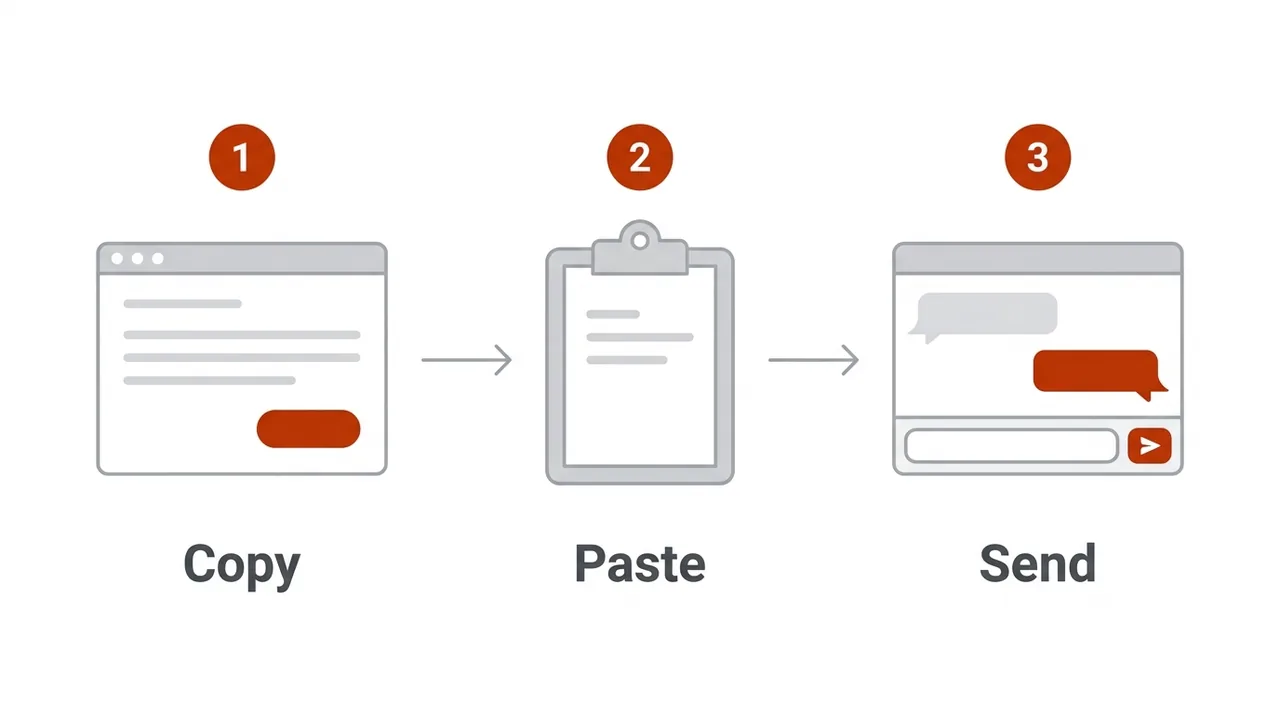
A useful first request is:
Use the uploaded transcripts to make a course outline.
For each topic, include the video title and source URL from the file.
Separate what the speaker says from your own interpretation.
If the transcripts do not answer a question, say so.
Keeping links in the source document helps you verify an answer. It does not guarantee that an AI will reproduce every source link correctly. Check quotations and references before reusing them.
Use playlist transcripts in NotebookLM
Choose One file and download TXT or Markdown. In NotebookLM, add the exported file as a source using the upload options available in your account. If the export contains multiple parts, add the relevant parts.
A merged document contains headings and original YouTube URLs, but it is still a document source. NotebookLM's citations may point to passages in that document rather than to separate YouTube video sources or exact playback times. When you need videos as individual sources, use the YouTube to NotebookLM link workflow instead.
Export a channel or a custom list of videos
For a channel, paste its URL or @handle. TubeKit lists its full-length videos newest first, then lets you select what to export. This is useful when you want a creator's discussions of one subject without unrelated videos.
For a custom selection, switch to Video links and paste one URL per line, up to 50 at a time. This lets you combine videos from different playlists or channels without creating a new YouTube playlist.
Missing captions, retries and charges
TubeKit extracts creator-uploaded or YouTube-generated captions. It does not transcribe audio from videos without captions. Private, deleted or unavailable videos cannot be included.
Videos marked No captions are left out of the export and do not use your free video allowance or credits. Retry failed requests separately rather than restarting the whole selection.
Bulk export includes 3 free videos per day without signing up, subject to shared daily service capacity. Signing in gives you 20 free credits. Further successful videos cost 1 credit each; pricing lists the current plans. The free allowance resets at 00:00 UTC.
For just one video, use the single-video transcript generator, which includes 5 free videos a day and a reading view alongside the video.