

How to Get a YouTube Transcript Without Timestamps
Copy a YouTube video's captions as clean paragraphs or download a TXT file without timestamps. Includes a free no-sign-up method and caption limitations.
Quick answer: Open TubeKit's YouTube Transcript Generator, paste the video link and press Get transcript. Choose Reading, leave Timestamps off, then press Copy or download TXT. TubeKit extracts existing YouTube captions; it cannot transcribe a video that has no captions. You can get 5 videos a day free without signing up, subject to daily service capacity.
Which method fits your task?
| What you need | Where to start | What you get |
|---|---|---|
| Read captions alongside a video | YouTube's own transcript panel, when available | Caption lines next to the video |
| Copy clean paragraphs without timestamps | TubeKit's single-video tool | Text you can paste into notes or an AI chat |
| Save subtitles for an editor | The same tool, then Download SRT | Caption lines with their original start and end times |
| Get text from many videos | Bulk Transcript Downloader | A merged file or a ZIP with a file per video |
| Turn audio into text when no captions exist | An audio transcription service | A new transcription generated from audio; TubeKit does not do this |
Copy clean text without timestamps
- Copy the video's YouTube link. Standard video links,
youtu.belinks and Shorts links work. - Paste it into the transcript tool and press Get transcript.
- Choose Reading for paragraphs. Leave Timestamps off.
- Press Copy, then paste into your notes, document or chat.
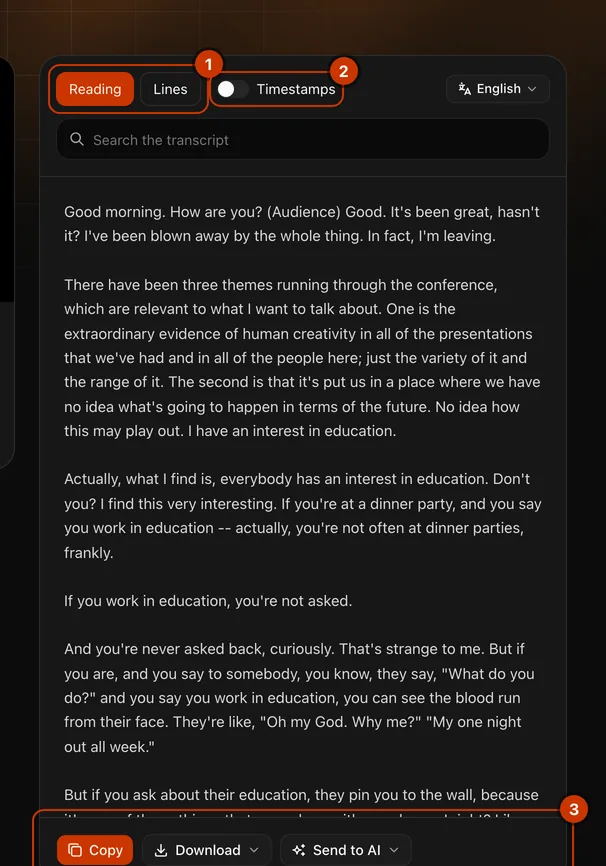
Reading view joins short caption fragments into paragraphs and removes standalone sound tags such as [Music] and [Applause]. It does not rewrite the speaker's words or correct mistakes in the source captions. Check important quotations against the video.
For example, the result has this shape. The following text is an illustration, not a quotation from a video:
Today we will cover three ways to organize your study notes.
Start by collecting the main ideas, then group related examples.
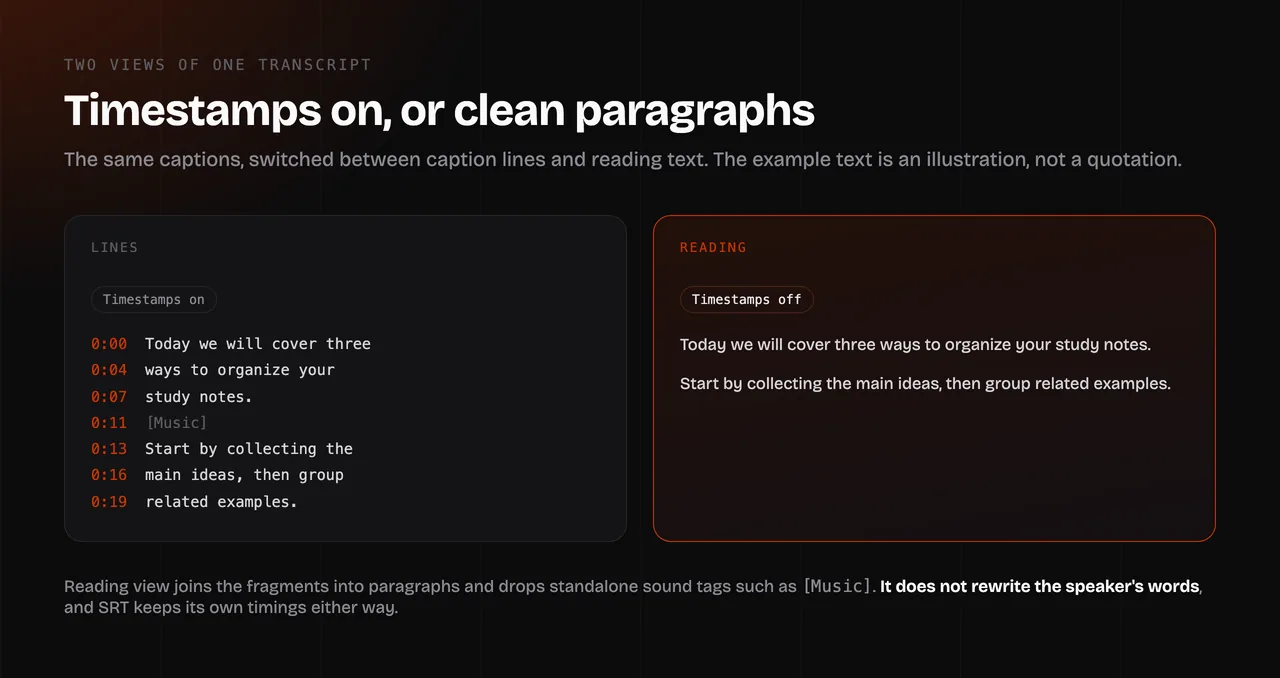
If you want separate caption lines instead, choose Lines. Copy and TXT download follow your chosen view and timestamp setting.
Download TXT, Markdown or SRT
Use TXT when you want plain text for reading, notes or an AI chat. With Timestamps off, the transcript body contains no time labels.
Use Markdown when you want a video heading and source link in a document. With Timestamps on, its time labels link back to moments in the original video.
Use SRT when you need subtitles. SRT keeps the original caption timings regardless of the Reading view's timestamp switch. Removing those timings would make it unsuitable as a subtitle file.
Use the transcript with ChatGPT or Claude
Once the transcript is ready, choose Send to AI and select ChatGPT or Claude. TubeKit copies the transcript, video title, source link and a summary prompt, then opens the selected app. You still need to paste the text and send it. This is a clipboard workflow; it does not connect your accounts or send the transcript automatically.
You can replace the summary prompt with a more specific request:
Using only the transcript below, list the speaker's main claims and
the examples supporting each claim. Say when the transcript does
not contain enough information. Do not invent quotations.
If a transcript is too long for the receiving app, split it into smaller sections. Keep the video title and source link with each section so you can check the original.
Get the transcript on your phone
In the YouTube app, use Share → Copy link. Open TubeKit in your phone's browser, paste the link and follow the same steps. You do not need a browser extension. Copy is useful for another app; TXT download is useful when you want a file.
What if there is no transcript?
TubeKit downloads captions uploaded by the creator or generated by YouTube. If neither exists, there is nothing for it to extract. It does not generate a new transcript from the video's audio, translate captions into a new language or access private videos.
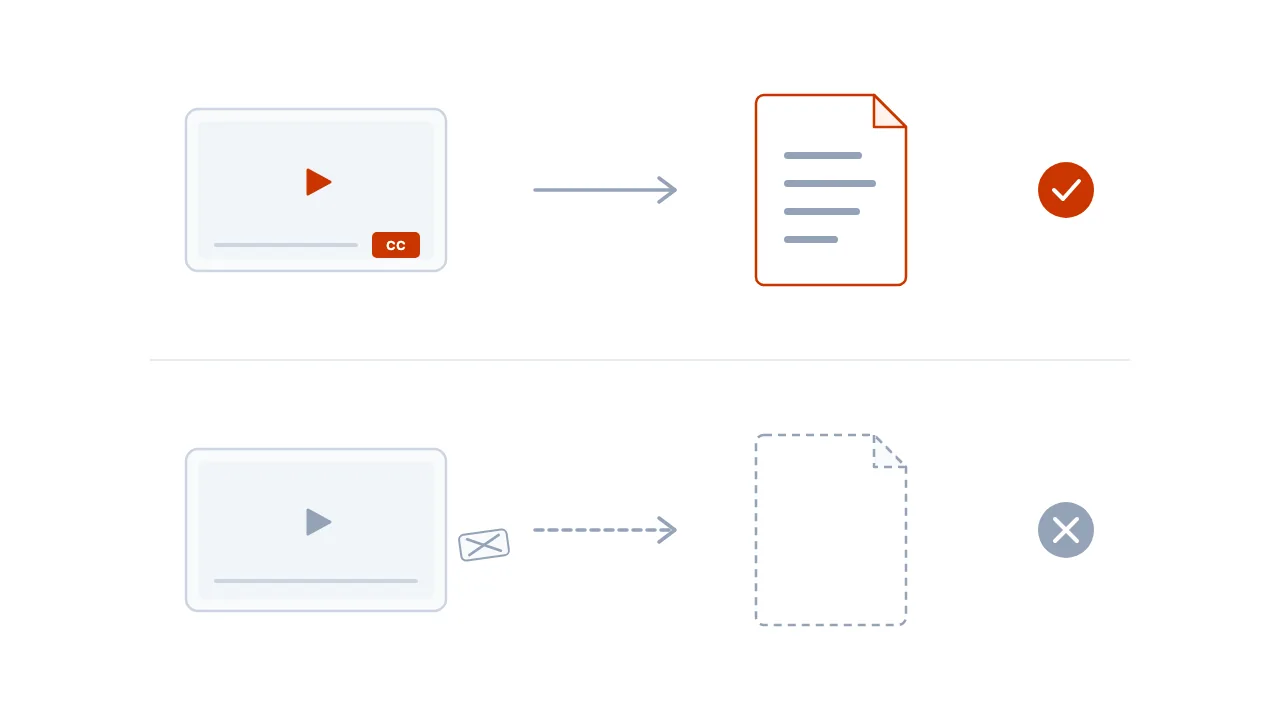
For an available video with no captions, you need an audio transcription service or captions supplied by the creator. Repeatedly trying a caption downloader cannot create missing captions.
Free allowance and larger jobs
The single-video tool allows 5 free videos per day without an account. Reopening a video you already opened that day does not count again. The free service also has a shared daily capacity, so availability can run out before your personal allowance does. The interface explains when this happens.
Signing in gives you 20 free credits; additional use can be paid with credits. Free daily allowances reset at 00:00 UTC. See pricing for current plans.
For a course, channel or several links, use the playlist transcript tool. It offers 3 free videos a day and can export one merged document. The bulk export guide explains file choices and how to keep each video's source link.